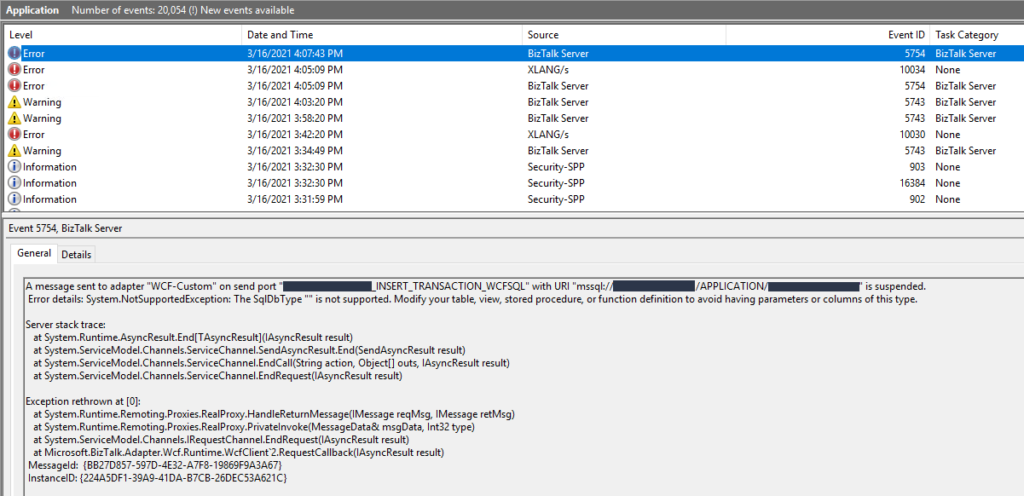
Recently while I was testing an integration solution on a client that uses WCF-SQL to insert data on a SQL Server database I got the following error:
System.NotSupportedException: The SqlDbType “” is not supported. Modify your table, view, stored procedure, or function definition to avoid having parameters or columns of this type.
This was a surprise since everything was working properly in the development environment.
Cause
In this solution, we were doing bulk insert on a SQL Server database by using a User-Defined Types as the input to the stored procedure, in our case a User-Defined Table Type. There are other ways to do a SQL Server bulk insert or update in BizTalk Server but definitely, this is the best approach. And this is one of the reasons why we are getting on the error message with the keyword: SqlDbType.
This problem occurs because the user account that you used to access the database, in my case the BizTalk Host Instance Account, don’t have permissions on the User-Defined Type associated to the Store procedure that we were invoking.
Solution
To solve this issue, you must give access to the user, in my case BizTalk Host Instance Account to properly execute the stored procedure, you must:
Open SQL Server Management Studio and connect to your server.
In the Object Explorer, select and expand the desired database and expand the Security folder and then the Users.
Right-click on the User, BizTalk Host Instance Account, and choose Properties.
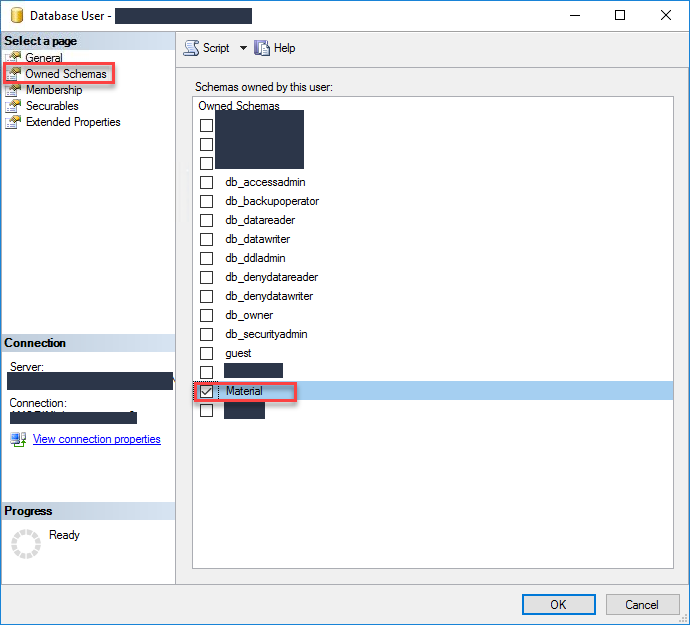
On the Database User windows, choose the Owned Schemas tab, and then on the Schemas owned by this user panel select the schema bind to your User-Defined Table Type.
In our case: Material
Click OK and try again to send the data to your SQL Server. It should work.
A message sent to adapter “WCF-Custom” on send port ” STAGING_SQL_WCF_SEND” with URI “mssql://SQL-SERVER-NAME//Database?” is suspended. Error details: Microsoft.ServiceModel.Channels.Common.MetadataException: Object [dbo].[IdRecord] of type StoredProcedure does not exist
Server stack trace: at System.Runtime.AsyncResult.End[TAsyncResult](IAsyncResult result) at System.ServiceModel.Channels.ServiceChannel.SendAsyncResult.End(SendAsyncResult result) at System.ServiceModel.Channels.ServiceChannel.EndCall(String action, Object[] outs, IAsyncResult result) at System.ServiceModel.Channels.ServiceChannel.EndRequest(IAsyncResult result)
Exception rethrown at [0]: at System.Runtime.Remoting.Proxies.RealProxy.HandleReturnMessage(IMessage reqMsg, IMessage retMsg) at System.Runtime.Remoting.Proxies.RealProxy.PrivateInvoke(MessageData& msgData, Int32 type) at System.ServiceModel.Channels.IRequestChannel.EndRequest(IAsyncResult result) at Microsoft.BizTalk.Adapter.Wcf.Runtime.WcfClient`2.RequestCallback(IAsyncResult result) MessageId: {0193EE6F-8DFF-4861-87FB-FC1C82ECF3AB} InstanceID: {59E3F39A-BF24-4583-BEA9-78CED5B621F7}
However, despite this error and despite the
fact that we were talking about the same server and same project of the previous
issue, one thing I was sure about: they were not related at all.
Cause
At a first glimpse, it seems that the stored
procedure does not include the column name: IdRecord, or that this field
was not passed to the stored procedure at all. So, this was my first point to validate,
however, quickly I realized that:
The
stored procedure had that field;
And
I was correctly passing that field to the stored procedure in the message;
Just to precaution, I double-check if that was
not related to security permission, and it was not also. So I went back to my some
conspiracy theories list that I described on my previous post:
You
should regenerate schemas: no, never
or
that may be a mismatch in the namespaces: I believe it could be a
possibility, but no, since I was using the same scheme and it was working fine
that
the “?” character that you normally find in the URI is causing this problem: also
impossible in my case.
And
my favorite is that you should give “sysadmin” rights to the service account
that is running the host instance: never.
But the last one put me thinking: the
operation is not properly set.
Because the last change I did was redesign the
solution that was performing composite operations with the SQL Adapter, in my
case I was sending multiple-rows to update in the same message.
And now I was doing a single operation.
And by doing that the WCF-SQL Adapter was throwing
this strange behavior.
Solution
The solution was quite simple. We just have to
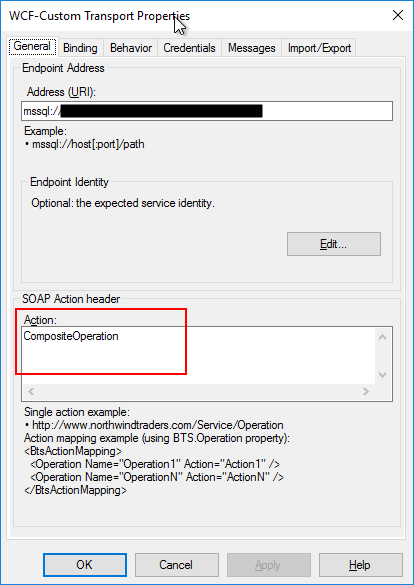
change the Action CompositeOperation with the correct operation action mapping
as show bellow as an example:
We all know that the WCF-SQL adapter enables BizTalk Server to perform composite operations on any SQL Server database. A composite operation can include any number of the following operations, and in any order:
The Insert, Update and Delete operations on the tables and views
Stored procedures that are surfaced as operations in the adapter
It can also execute Transact-SQL and CLR:
Stored procedures in an SQL Server database
Scalar and table-valued functions in an SQL Server database
And so on
In resume operations at the Tables, Views, Procedures, Scalar Functions, and Table-Valued Functions, levels will be supported.
Stored Procedure permissions
I personally like to use Stored Procedures instead of directly accessing the tables which are available in the database.
Regarding the required access permission in SQL Server for BizTalk Server, to connect to a particular database to extract or store data, or in this case, be able to call stored procedures, what teams normally do is creating:
A new SQL user with “db_owner” privileges
Or they give “db_owner” privileges to the service account that is running the BizTalk Server host instance, for example, “BTSHostSrvs” (BizTalk Host Instance Account)
Why? Because this is simple and quick, and they don’t need to worry about lack of permissions or the proper permissions.
GDPR considerations
But sometimes these tables contain sensitive data or personal data, and nowadays with General Data Protection Regulation (GDPR) in the European Union (EU), this sometimes can be a backdoor for other possible problems. Teams need to start thinking in concepts like “Privacy by Design” and “Privacy by Default” for their solutions:
“Privacy by Designs” holds that organizations need to consider privacy at the initial design stages and throughout the complete development process of new products, processes or services that involve processing personal data
“Privacy by default” means that when a system or service includes choices for the individual on how much personal data he/she shares with others, the default settings should be the most privacy-friendly ones
So, companies should be more careful and more strict in:
Who has access to what?
Limit the number of persons that can access that information to the strictly essential persons
Define a better access granularity and restrict access, once again, to the essential tasks
A service account that consumes or store new data shouldn’t be a database owner or a sysadmin.
Secure Stored Procedure permissions
Of course, giving “sysadmin” or “db_owner” would solve all our problems but it goes against security best practices.
One way, or -personally- the best way, for you to properly define a better access granularity and restrict access to the essential tasks or in other words, the essential stored procedures, is to create a new server role, for that particular database, in SQL Server. Follow below steps to create such a server role:
Open SQL Server Management Studio and connect to your SQL server
In the Object Explorer, access to your database and expand it
Expand the Security folder
Right-click the “Database Roles” folder and select “New Database Role…”
In the “New Database Role” window
On the “Role name” property, on the General page, enter a name for the new database role, for example, “db_spexecution”
At the Securables page, under Securables, click the “Search” button
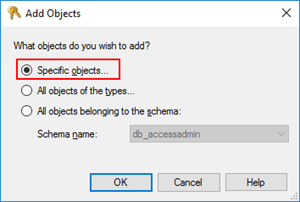
On “Add Objects” window, select “Specific objects…” and click “OK”
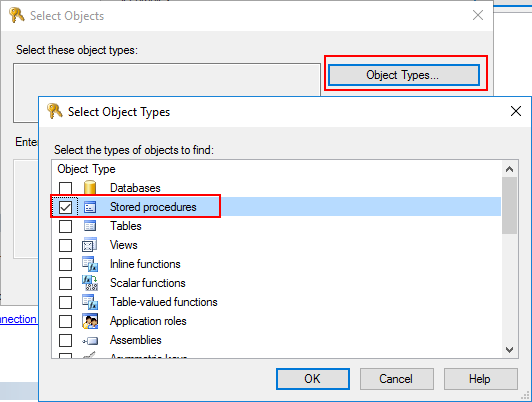
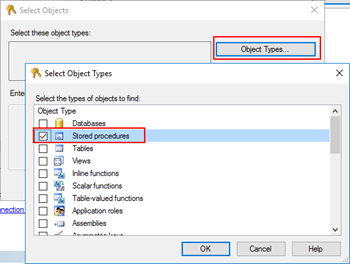
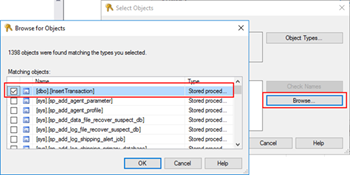
On “Select Objects” windows, click “Object Types…” and then select “Stored Procedures”
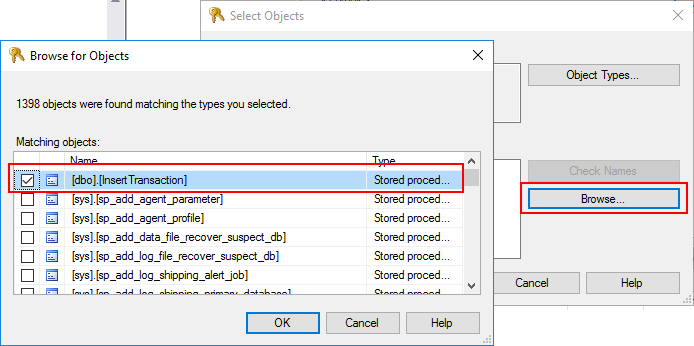
After selecting the object type, click “Browse…” and from the “Browser for Objects” window, select the stored procedures you want to invoke(only the one that you need)
Click “Ok” and again “OK” to return to the main “New Database Role” window
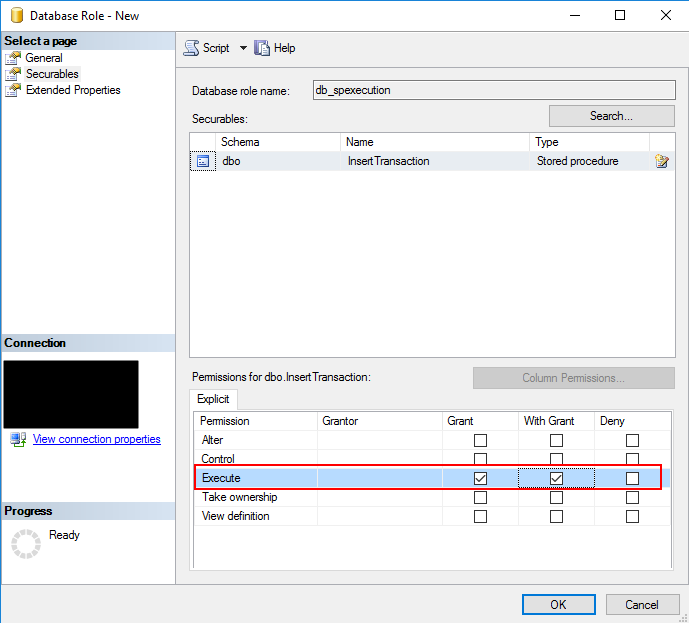
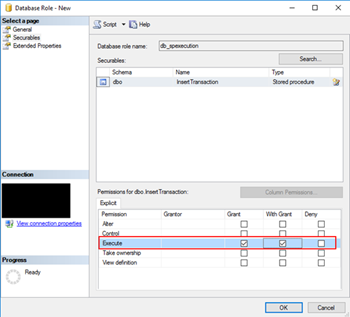
The last step, on the Securables page, is to give Execute permissions “Grant” and “Grant with”
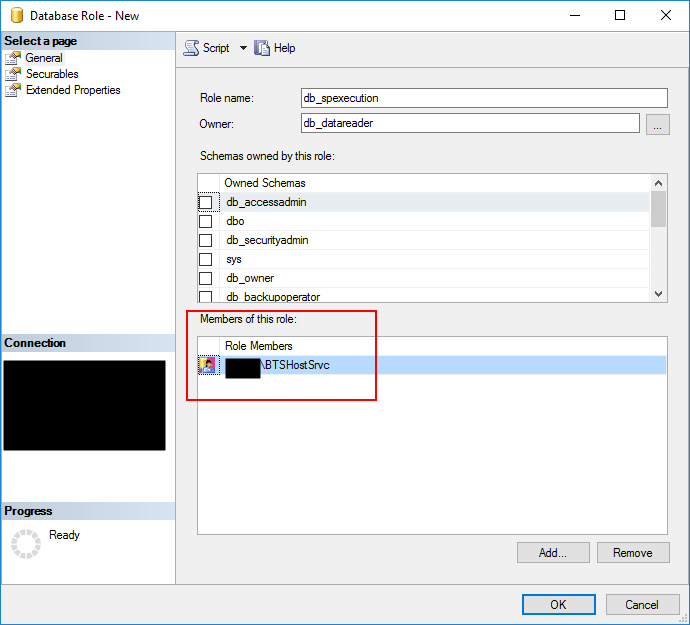
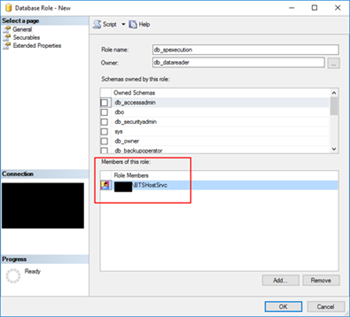
Finally, on the General tab, add the service account that is running the host instance to the Role Members for that role
Click “OK” to finish
It gives you more work, that is for sure, but now you will have a properly access granularity defined, with the minimum rights defined for the actually necessary tasks. Nothing more, nothing less… as things should be.
Author: Sandro Pereira
Sandro Pereira is an Azure MVP and works as an Integration consultant at DevScope. In the past years, he has been working on implementing Integration scenarios both on-premises and cloud for various clients, each with different scenarios from a technical point of view, size, and criticality, using Microsoft Azure, Microsoft BizTalk Server and different technologies like AS2, EDI, RosettaNet, SAP, TIBCO etc. View all posts by Sandro Pereira
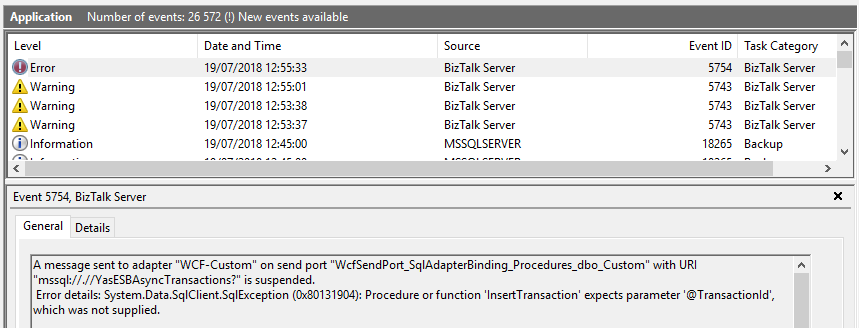
Today while trying to test a solution where it was supposed to invoke a SQL Server Stored Procedure with optional parameters thru the BizTalk Server WCF-SQL adapter I got this following error: Procedure or function expects parameter which was not supplied.
A message sent to adapter “WCF-Custom” on send port “WcfSendPort_SqlAdapterBinding_Procedures_dbo_Custom” with URI “mssql://.// AsyncTransactions?” is suspended.
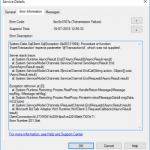
Error details: System.Data.SqlClient.SqlException (0x80131904): Procedure or function ‘InsertTransaction’ expects parameter ‘@TransactionId’, which was not supplied.
Server stack trace:
at System.Runtime.AsyncResult.End[TAsyncResult](IAsyncResult result)
at System.ServiceModel.Channels.ServiceChannel.SendAsyncResult.End(SendAsyncResult result)
at System.ServiceModel.Channels.ServiceChannel.EndCall(String action, Object[] outs, IAsyncResult result)
at System.ServiceModel.Channels.ServiceChannel.EndRequest(IAsyncResult result)
Exception rethrown at [0]:
at System.Runtime.Remoting.Proxies.RealProxy.HandleReturnMessage(IMessage reqMsg, IMessage retMsg)
at System.Runtime.Remoting.Proxies.RealProxy.PrivateInvoke(MessageData& msgData, Int32 type)
at System.ServiceModel.Channels.IRequestChannel.EndRequest(IAsyncResult result)
at Microsoft.BizTalk.Adapter.Wcf.Runtime.WcfClient`2.RequestCallback(IAsyncResult result)
The adapter failed to transmit message going to send port “WcfSendPort_SqlAdapterBinding_Procedures_dbo_Custom” with URL “mssql://.// AsyncTransactions?”. It will be retransmitted after the retry interval specified for this Send Port. Details:”System.Data.SqlClient.SqlException (0x80131904): Procedure or function ‘InsertTransaction’ expects parameter ‘@TransactionId’, which was not supplied.
The adapter failed to transmit message going to send port “WcfSendPort_SqlAdapterBinding_Procedures_dbo_Custom” with URL “mssql://.// AsyncTransactions?”. It will be retransmitted after the retry interval specified for this Send Port. Details:”Microsoft.ServiceModel.Channels.Common.XmlReaderParsingException: The start element with name “Request” and namespace “http://BizTalkTesting.SQLBulkOperations” was unexpected. Please ensure that your input XML conforms to the schema for the operation.
Cause
The cause of this problem is, once again, quite obvious and the error message present clearly identifies the origin of the problem. The stored procedure is expecting a certain field or several fields that are not being passed maybe because they are marked on the schema as optional fields.
Solution
Of course, the simple problem is to pass all the parameter presented and required by the stored procedure. You should pass them:
as NULL, if they are nillable;
or as empty strings;
Having said that, my problem was not that quite simple because the parameter described in the error above needs to be optional. After I analyze the stored procedure contract I realized that all of them are set as mandatory fields that need to be passed:
ALTER PROCEDURE [dbo].[InsertTransaction]
    -- Add the parameters for the stored procedure here
    @SourceSystem  VARCHAR(50),
    @DestinationSystem VARCHAR(50),
    @TransactionId uniqueidentifier,
    @MessageId uniqueidentifier,
    @DocumentType VARCHAR(50),
    @DocumentId VARCHAR(100),
    @BodyMessage ntext,
    @BodyType VARCHAR(5),
    @Priority int
AS
BEGIN
...
When I say that all of them are mandatory, of course, I can set it as NULL but in terms of BizTalk Server, I need to send all the fields in the XML message.
To make it actually optional, we need to change the contract of the schema to something like this:
ALTER PROCEDURE [dbo].[InsertTransaction]
    -- Add the parameters for the stored procedure here
    @SourceSystem  VARCHAR(50),
    @DestinationSystem VARCHAR(50),
    @TransactionId uniqueidentifier  = null,
    @MessageId uniqueidentifier  = null,
    @DocumentType VARCHAR(50),
    @DocumentId VARCHAR(100),
    @BodyMessage ntext,
    @BodyType VARCHAR(5),
    @Priority int
AS
BEGIN BEGIN
...
Once we modify the stored procedure to have default NULL values the problem will be solved. Now we don’t need to send these fields as NULL or blank, now we actually can omit them from the message – optional fields!
Author: Sandro Pereira
Sandro Pereira lives in Portugal and works as a consultant at DevScope. In the past years, he has been working on implementing Integration scenarios both on-premises and cloud for various clients, each with different scenarios from a technical point of view, size, and criticality, using Microsoft Azure, Microsoft BizTalk Server and different technologies like AS2, EDI, RosettaNet, SAP, TIBCO etc. He is a regular blogger, international speaker, and technical reviewer of several BizTalk books all focused on Integration. He is also the author of the book “BizTalk Mapping Patterns & Best Practices”. He has been awarded MVP since 2011 for his contributions to the integration community. View all posts by Sandro Pereira
To finalize, maybe, these series of Errors and Warnings… Causes and Solutions let’s describe and address a fairly simple one that from time to time appears: Login Failed. While trying to communicate to a SQL Server database to invoke a stored procedure thru BizTalk WCF-SQL adapter I got this following error:
A message sent to adapter “WCF-Custom” on send port “STAGING_SQL_WCF_SEND” with URI “mssql://SQL-SERVER-NAME//AsyncTransactions?InboundId=ins” is suspended.
Error details: Microsoft.ServiceModel.Channels.Common.ConnectionException: Cannot open database “AsyncTransactions” requested by the login. The login failed.
Login failed for user ‘DOMAINBTSHostSrvc’.—> System.Data.SqlClient.SqlException: Cannot open database “AsyncTransactions” requested by the login. The login failed.
The cause of the problem is quite obvious and the error message, this time because sometimes is not quite true like we saw in my last post, the error message clearly identifies the origin of the problem.
This problem occurs because the user account that you used to access the database, in my case the BizTalk Host Instance Account, don’t have permissions to connect the database.
Simple problem, simple solution. You need to grant permission to the user to access database
Once again, given “sysadmin” or “db_owner” would solve all our problems but it goes against security best practices and sometimes these tables contain sensitive data or personal data, and nowadays with General Data Protection Regulation (GDPR) in EU this sometimes can be a backdoor for other possible problems and teams need to start taking into considerations these security policies.
You always should give the minimum rights to a certain user for him to do the necessary tasks. Nothing more, nothing less… as things should be.
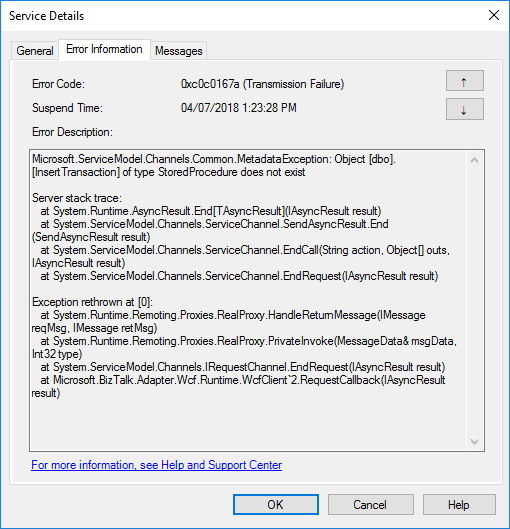
I told you in my last blog post an error never comes alone … when an error appears, it always appears two or three. Or that, or I have a tendency to attract, or find weird errors! This time I was completely stunned: StoredProcedure does not exist, while trying to invoke a stored procedure thru BizTalk WCF-SQL adapter:
Microsoft.ServiceModel.Channels.Common.MetadataException: Object [dbo].[InsertTransaction] of type StoredProcedure does not exist
Server stack trace:
at System.Runtime.AsyncResult.End[TAsyncResult](IAsyncResult result)
at System.ServiceModel.Channels.ServiceChannel.SendAsyncResult.End(SendAsyncResult result)
at System.ServiceModel.Channels.ServiceChannel.EndCall(String action, Object[] outs, IAsyncResult result)
at System.ServiceModel.Channels.ServiceChannel.EndRequest(IAsyncResult result)
Exception rethrown at [0]:
at System.Runtime.Remoting.Proxies.RealProxy.HandleReturnMessage(IMessage reqMsg, IMessage retMsg)
at System.Runtime.Remoting.Proxies.RealProxy.PrivateInvoke(MessageData& msgData, Int32 type)
at System.ServiceModel.Channels.IRequestChannel.EndRequest(IAsyncResult result)
at Microsoft.BizTalk.Adapter.Wcf.Runtime.WcfClient`2.RequestCallback(IAsyncResult result)
or in the event viewer:
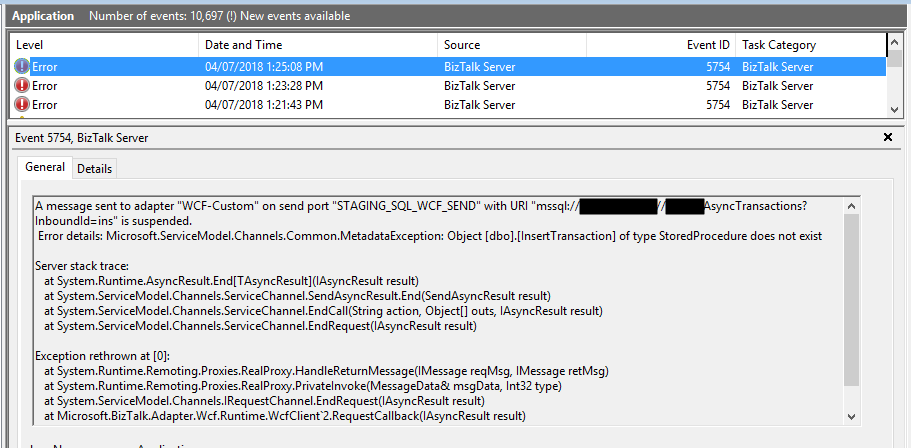
A message sent to adapter “WCF-Custom” on send port “STAGING_SQL_WCF_SEND” with URI “mssql://SQL-SERVER-NAME//AsyncTransactions?InboundId=ins” is suspended.
Error details: Microsoft.ServiceModel.Channels.Common.MetadataException: Object [dbo].[InsertTransaction] of type StoredProcedure does not exist
Server stack trace:
at System.Runtime.AsyncResult.End[TAsyncResult](IAsyncResult result)
at System.ServiceModel.Channels.ServiceChannel.SendAsyncResult.End(SendAsyncResult result)
at System.ServiceModel.Channels.ServiceChannel.EndCall(String action, Object[] outs, IAsyncResult result)
at System.ServiceModel.Channels.ServiceChannel.EndRequest(IAsyncResult result)
Exception rethrown at [0]:
at System.Runtime.Remoting.Proxies.RealProxy.HandleReturnMessage(IMessage reqMsg, IMessage retMsg)
at System.Runtime.Remoting.Proxies.RealProxy.PrivateInvoke(MessageData& msgData, Int32 type)
at System.ServiceModel.Channels.IRequestChannel.EndRequest(IAsyncResult result)
at Microsoft.BizTalk.Adapter.Wcf.Runtime.WcfClient`2.RequestCallback(IAsyncResult result)
As I normally say, doubt what you read – even if it is on my blog – because there are many conspiracy theories, and we can find so-called solutions by googling it… but a lot of them are just that: conspiracy theories.
Cause
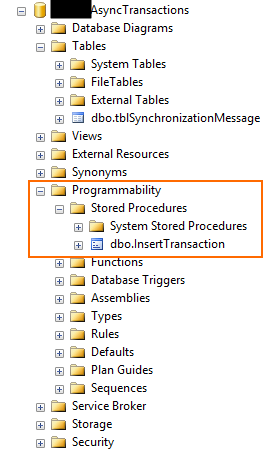
Personally, I usually like to start with the simplest thing: If it says that doesn’t exist… let’s check, and in this case, the error raised by the adapter it’s just stupid because the stored procedure exists in that specific database as you may see in the picture below:
At a first glimpse, it seems that was not a security issue because I was able to connect to the database, otherwise, I would get the following error:
Error details: Microsoft.ServiceModel.Channels.Common.ConnectionException: Cannot open database “AsyncTransactions” requested by the login. The login failed.
Again, some conspiracy theories may let you think that:
you should regenerate schemas;
or that may be a mismatch in the namespaces;
the operation is not properly set;
that the “?” character that you normally find in the URI is causing this problem;
and my favorite is that you should give “sysadmin” rights to the service account that is running the host instance.
Lucky, I remembered to double check the security permission directly on SQL Server, so I opened the SQL Server Management Console with the service account and try to execute the stored procedure and… guest what… I didn’t have permissions!
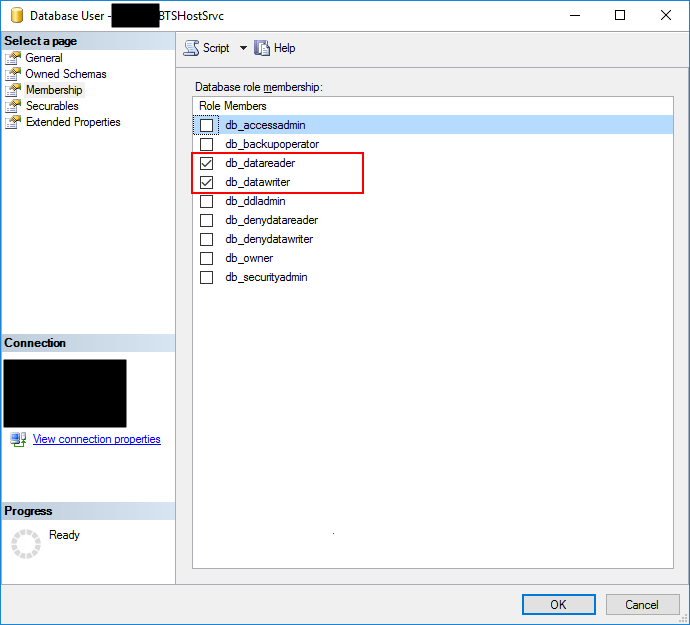
When I double check the permissions to that service account, it had: db_datareader and db_datawriter… that in some situations are enough:
Of course, given “sysadmin” or “db_ower” would solve all my problems but sometimes you are not allowed to do that for security reasons and also is not a best practice, special now with GDPR.
So the problem was clear that the service account that is running the host instance bind to that send port didn’t have the right permissions to execute the stored procedure… unfortunately, the error raised by the adapter is out of context.
Solution
The best approach for you to solve this problem is to create a new server role, for that particular database, in SQL Server:
In Object Explorer, access to your database and expand it.
Expand the Security folder.
Right-click the “Database Roles” folder and select “New Database Role…”
In the “New Database Role” window
On the “Role name” property, on the General page, enter a name for the new database role, for example, “db_spexecution”
On the “Owner” property, inherit from db_datareader and db_datawriter (optional)
On the Securables page, under Securables, click “Search” button.
On “Add Objects” window, select “Specific objects…” and click “OK”
On “Select Objects” windows, click “Object Types…” and then select “Stored Procedures”
After selecting the object type, click “Browse…” and from the “Browser for Objects” windows select the stored procedures you want to invoke. (only the one that you need)
Click “Ok” and again “OK” to return to the main “New Database Role” window.
The last step, on the Securables page, is to give Execute permissions “Grant” and “Grant with”.
And finally give, on the General tab, add the service account that is running the host instance to the Role Members for that role.
Click “OK” to finish.
You can now try to resend the suspended messages or send new ones, and you will be able to communicate and execute the stored procedures without any problem.
Author: Sandro Pereira
Sandro Pereira lives in Portugal and works as a consultant at DevScope. In the past years, he has been working on implementing Integration scenarios both on-premises and cloud for various clients, each with different scenarios from a technical point of view, size, and criticality, using Microsoft Azure, Microsoft BizTalk Server and different technologies like AS2, EDI, RosettaNet, SAP, TIBCO etc. He is a regular blogger, international speaker, and technical reviewer of several BizTalk books all focused on Integration. He is also the author of the book “BizTalk Mapping Patterns & Best Practices”. He has been awarded MVP since 2011 for his contributions to the integration community. View all posts by Sandro Pereira
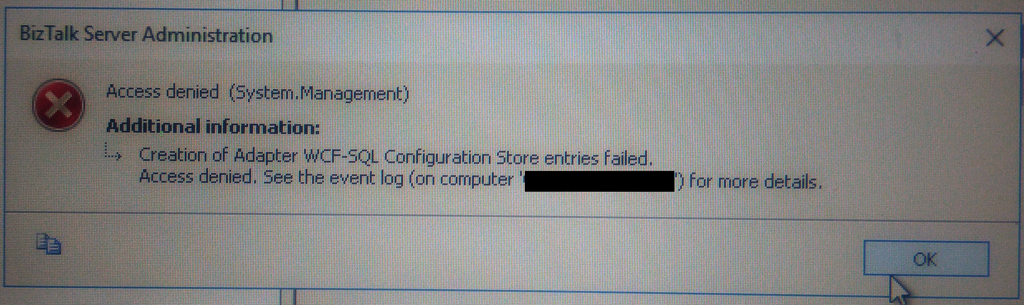
This week while configuring and optimizing a brand-new BizTalk Server 2016 environment we got the following error message while trying to configure register the WCF-SQL Adapter in the BizTalk Server Administration console:
Creation of Adapter WCF-SQL Configuration Store entries failed. Access denied. See the event log (on computer ‘SQL-SERVER’) for more details.
(sorry the picture quality, it was taken with my cell phone)
Despite I was a member of BizTalk Administration group, I didn’t have remote access to the SQL Server machine that was managed by another team so I couldn’t go there to check it out. Nevertheless, I reach that team (SQL and sysadmins) already with a possible solution that it turned out to be correct.
Cause
Many of the times these types of issues indicate or lead us to believe that there are problems associated with MSDTC. Or is not properly configured, Windows Firewall may be blocking DTC communications or in HA environment’s SSO is not clustered and may be offline.
All these possibilities should be investigated. However, if any of the points mentioned above were, for this particular case, a probable cause for this problem, it should have already manifested itself when the team pre-installed the environment and they did install the environment without encountering any problems.
The only difference between the installation and now my configuration was that these tasks were made by different users!
It is important to mention that, the user that is trying to registering an Adapter using the BizTalk Server Administration Console, need to have permissions to the SSO Database in order to register its properties so that he can store and retrieve the properties at design time and runtime.
And that is one of the reasons for why the “BizTalk Server Administrators” group should be a member of the “SSO Administrators” group.
BizTalk administrations are responsible for configuring all the components of BizTalk and many of them need to interact with SSO Database.
The people/team that was responsible to install BizTalk Server, they were members of BizTalk Server Administration, SSO Administration and some of them System Administrations and that was the reason why they didn’t get this problem or similar problems. The reason for the problem I faced was because:
My user was a member of BizTalk Server Administrators and local admin only. But the BizTalk Server Administrators wasn’t member of SSO Administration group.
Solution
To solve this problem, you may have two options:
Add my user to the SSO Administrators group.
Not recommended because in my opinion is more difficult to manage user access rights if you add them to each individual group.
Or add the “BizTalk Server Administrators” as a member of the “SSO Administrators” group.
After my user or the “BizTalk Server Administrators” group was added as a member of the “SSO Administrators” group, I was able to register the adapter.
Note: this problem can happen with any adapter you are trying to register.
Author: Sandro Pereira
Sandro Pereira lives in Portugal and works as a consultant at DevScope. In the past years, he has been working on implementing Integration scenarios both on-premises and cloud for various clients, each with different scenarios from a technical point of view, size, and criticality, using Microsoft Azure, Microsoft BizTalk Server and different technologies like AS2, EDI, RosettaNet, SAP, TIBCO etc. He is a regular blogger, international speaker, and technical reviewer of several BizTalk books all focused on Integration. He is also the author of the book “BizTalk Mapping Patterns & Best Practices”. He has been awarded MVP since 2011 for his contributions to the integration community. View all posts by Sandro Pereira
I been delivering a lot of BizTalk Server Training Courses for Developers and for Administrator in the past years that I normally like to call them “Developing BizTalk Server version Course” or “BizTalk Server Operations, Administration, and Maintenance (OAM) course” – yes I know, I am very creative in terms of names – and one of the good things about using Azure Virtual Machines for that is that we can easily create several developer machines in a short period of time and manage them for not consuming resources. And normally on of the task that is present in both courses is to configure BizTalk Server environment, because I believe that all BizTalk Developers should know the basics of BizTalk Server in terms of installation, configuration and optimizations – tasks that are normally done by BizTalk Administrations – I can go further and say that, in my personal opinion, if you don’t know these basic concepts you are not truly a BizTalk Developer because many things can be done by configurations and not code.
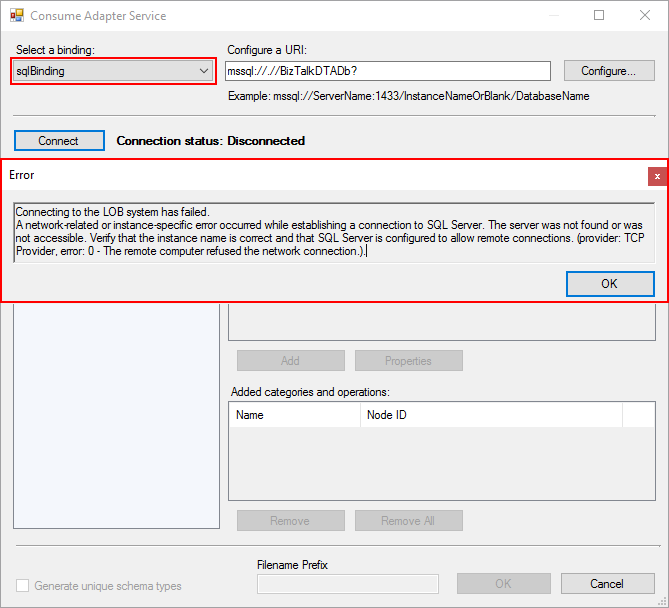
One of these tasks is to install and configure BizTalk Server LOB adapters, in especially SQL Server adapter, since in a Developer standalone machine we will need to have SQL Server, so it is easy to test this LOB Adapter. However, if we create the Azure BizTalk Server 2016 Developer machine, configure BizTalk Server and then install and configure LOB adapters without doing anything more and you try to create a BizTalk Server solution using Visual Studio and generate SQL Server schemas:
In the Solution Explorer, right-click your project, click “Add”, and then click “Add Generated Items…”
In the “Add Generated Items – <Project Name>” dialog box, select “ConsumeAdd Service”, and then click “Add”.
Select the sqlBinding and properly configuring the URI
We will get the following error message:
Connecting to the LOB system has failed.
A network-related or instance-specific error occurred while establishing a connection to SQL Server. The server was not found or was not accessible. Verify that the instance name is correct and that SQL Server is configured to allow remote connections. (provider: TCP Provider, error: 0 – The remote computer refused the network connection.).
when we try to connect to the SQL Server configured.
Cause
This error may occur for several reasons like BizTalk Server cannot communicate with SQL Server machine because some firewall restrictions or SQL Server does not accept Remote Connections and so on.
However, in our case, we are talking about a standalone BizTalk machine that is trying to access a database in the local SQL Server.
Our problem was that by default what Microsoft could possibly configure wrong in terms of SQL Server protocols on the BizTalk Server developer image on Azure… is actually set up wrongly!
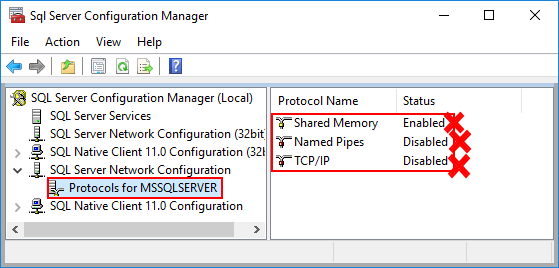
And as I described in my BizTalk Server Installation and configuration tutorial (see here), one of the important steps is to configure SQL Server Network Protocols, in special ensuring that TCP/IP is enabled and Shared Memory is disabled. You can see how to accomplish this using SQL Server Configuration Manager tool here.
The actual problem that was causing the connecting to fail while trying to connect to the LOB system, in this particular case the SQL Server is because the TCP/IP protocol is disabled.
Solution
To properly configure the protocols for SQL Server, especially the TCP/IP protocol, you should:
Press the “Windows key” to switch to Metro UI and type “SQL Server 20016 Configuration Manager” and click on “SQL Server 2016 Configuration Manager” option on Apps menu.
In SQL Server Configuration Manager windows, from the left-hand pane expand “SQL Server Network Configuration” option and then click “Protocols for MSSQLSERVER”
Verify that both “TCP/IP” and “Named Pipes” are enabled;
If not, right-click in the protocol, and then click “Enable”
Repeat to enable the other protocol if necessary.
Verify that “Shared Memory” is Disable.
If not, right-click Shared Memory, and then click “Disable”
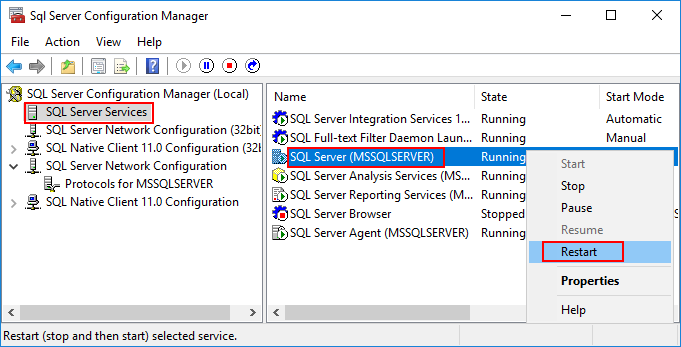
In the left-hand pane, click “SQL Server Services”, right-click “SQL Server (MSSQLSERVER)”, and then click “Restart”.
Close SQL Server Configuration Manager.
Click “OK” and then “Apply”
After correctly configure the SQL Server protocols, again, especially the TCP/IP, you will be able to successfully connect and generate the SQL Server Schemas that you need for your BizTalk Server Solution.
Author: Sandro Pereira
Sandro Pereira lives in Portugal and works as a consultant at DevScope. In the past years, he has been working on implementing Integration scenarios both on-premises and cloud for various clients, each with different scenarios from a technical point of view, size, and criticality, using Microsoft Azure, Microsoft BizTalk Server and different technologies like AS2, EDI, RosettaNet, SAP, TIBCO etc. He is a regular blogger, international speaker, and technical reviewer of several BizTalk books all focused on Integration. He is also the author of the book “BizTalk Mapping Patterns & Best Practices”. He has been awarded MVP since 2011 for his contributions to the integration community. View all posts by Sandro Pereira

![BizTalk WCF-SQL Error: Microsoft.ServiceModel.Channels.Common.MetadataException: Object [dbo].[ColumnName] of type StoredProcedure does not exist.](https://www.biztalkgurus.com/wp-content/uploads/2019/11/biztalk-server-Object-dbo-ColumnName-of-type-StoredProcedure-does-not-exist-1024x445-1-150x150.png)
![Microsoft.ServiceModel.Channels.Common.MetadataException: Object [dbo].[ColumnName] of type StoredProcedure does not exist.](https://blog.sandro-pereira.com/wp-content/uploads/2019/11/biztalk-server-Object-dbo-ColumnName-of-type-StoredProcedure-does-not-exist.png)





![BizTalk WCF-SQL Error: Microsoft.ServiceModel.Channels.Common.MetadataException: Object [dbo].[StoredProcedureName] of type StoredProcedure does not exist](https://www.biztalkgurus.com/wp-content/uploads/2018/07/BizTalk-WCF-SQL-Object-type-StoredProcedure-does-not-exist_thumb-1-150x150.png)